








Introduction
MyPasokey is getting attention because people want logins that feel faster and safer. If you are trying to understand mypasokey, this guide shows what it is, how it works, where it makes sense, and what to watch out for. The part most articles miss is recovery, not sign in. That matters more than people think.
What MyPasokey Really Means
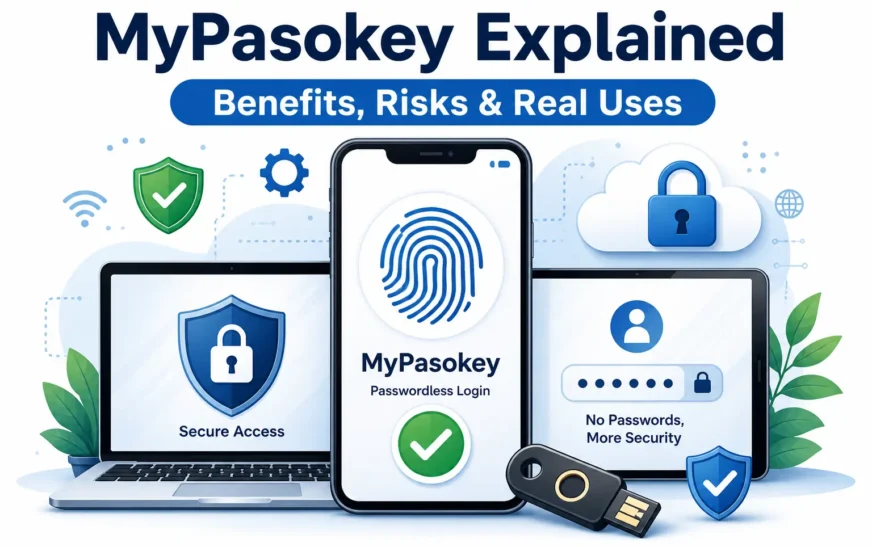
Based on its own public pages, MyPasokey is being positioned as both a smart password manager and an advanced passwordless authentication solution. That matters because it places the term in the same space as modern passkey style login systems. In that model, the user is not trying to remember a long secret. The user is proving identity with the device they already trust.
That is also why mypasokey is easy to misunderstand at first. Some people read it like a brand name. Others read it like a method. In practice, the useful idea is the same. It is about making login feel lighter while lowering the risk that comes with passwords people reuse, forget, or hand over to fake login pages. NIST still treats a password as a memorized secret, which is exactly why passwordless sign in keeps gaining ground.
Why People Search for MyPasokey
People usually search for mypasokey because regular passwords are tiring. You have to remember them, update them, and protect them across many accounts. That is hard enough for one person. It becomes a mess when you manage email, social accounts, work tools, cloud storage, and shopping logins all at once. Passkeys were created to reduce that burden by letting people sign in with the same action they already use to unlock a device.
There is also the phishing problem. Google says passkeys cannot be shared, copied, written down, or accidentally given to someone else, and that makes them more resistant to phishing than passwords. That is one of the strongest reasons this category is growing. People do not just want convenience. They want a login method that does not rely on memory alone.
How MyPasokey Works
Device unlock is the key step
The basic flow is simple. A passkey style system lets you sign in by unlocking a device with a fingerprint, face scan, PIN, or pattern. FIDO defines a passkey as a cryptographic credential tied to an account, and Google describes it as a safer and easier alternative to passwords. In other words, the device proves that you are you. Then the account trusts the device.
That is why the experience feels so different from a normal password screen. You do not type a secret every time. You approve the login with the lock already on your phone or computer. On Google accounts, biometric data stays on the device and is never shared with Google, which is an important trust detail for users who worry about privacy.
The trust comes from cryptography
The other important part is the cryptographic design. FIDO describes passkeys as cryptographic credentials, not just saved text like a normal password. That distinction is what helps reduce phishing risk. If there is no reusable password to steal, a fake login page has less value to an attacker.
For app makers, Google says passkeys are supported through tools like WebAuthn on the web and Credential Manager on Android. Credential Manager brings passkeys, passwords, and federated sign in into one flow, which gives users a more consistent login screen and can reduce friction during sign in. That is why this approach is spreading beyond single apps and becoming part of a wider login stack.
The Benefits That Actually Matter
The biggest benefit of mypasokey is less friction. Users do not need to remember another password, reset one they forgot, or dig through notes and browsers to find the right login. Google says passkeys let users sign in with fingerprint, facial recognition, PIN, or pattern, and that makes the process feel close to simply unlocking the device. For most people, that is the real win.
The second benefit is security. Passwords are still a memorized secret, and secrets can be guessed, reused, exposed, or stolen. Passkeys remove the normal password from the sign in flow, which is why they are considered more phishing resistant. That does not make every account invincible. It does make the common attack path much weaker.
The third benefit is continuity across devices. Google for Developers says that once a passkey is created and registered, the user can move to a new device and use it without the usual reenrollment pain that comes with some other authentication methods. That makes the system practical for people who switch phones, use more than one laptop, or sign in from different places during the week.
Where MyPasokey Fits Best
MyPasokey makes the most sense when your daily life includes many logins and you want a cleaner way to handle them. It fits well for email, cloud tools, social accounts, and work dashboards because those are the places where passwords become annoying fastest. If a login takes only a few seconds, people are more likely to use it properly instead of avoiding it. That is where passwordless sign in has real value.
It also fits better when the device itself is already part of your routine. Google says supported phones and computers can use passkeys, and it also notes that Bluetooth may be needed when a phone is used to sign in to another computer. That means the system is strongest when your devices are current and you understand how they work together.
For product teams and developers, this matters because the login experience affects completion and trust. Google’s Android Credential Manager is designed to unify modern sign in methods and present a consistent experience to users. In plain terms, that means mypasokey style systems are not just a security feature. They are also a usability feature.
MyPasokey vs Traditional Passwords
Traditional passwords depend on memory and careful storage. MyPasokey style login depends on device access and device unlock. That is a big difference. With passwords, the main question is whether you remember the secret. With passkeys, the main question is whether you still control the trusted device.
That change is what makes the experience feel better for normal users. It removes the mental clutter of password creation, password reuse, and password resets. It also cuts down on the chance that someone can trick you into typing your secret into a fake page. Google’s guidance is clear that passkeys are a simpler and more secure alternative to passwords.
Still, traditional passwords do have one thing going for them. People understand them already. That is why many systems keep passwords and passkeys side by side during the transition. Google also says adding a passkey does not remove your existing recovery factors. That is a practical detail, and it is one reason the switch can be gradual instead of all at once.
How to Set It Up Safely
The safest way to start is with a device you own and use regularly. Google specifically says only to create a passkey on devices you personally own and use. That advice matters because device access is now part of account access. If someone can unlock your device, they may be able to use the passkey connected to it.
You should also keep your normal recovery setup in place. Google says passkeys do not remove your existing authentication or recovery factors, which is good news. It means you can build protection around the login instead of depending on one single method. If you lose a device with a passkey, Google advises removing that passkey from another device you can still access.
A smart rollout is better than a hard switch. Start with one account. Test the login. Make sure you understand how the phone, browser, and device lock work together. Then add more accounts only after you know the recovery path is solid. That is the difference between a setup that feels secure and one that only looks secure.
The Mistakes Most People Make
The first mistake is ignoring recovery. People get excited about faster sign in and forget to ask what happens when the phone is lost, stolen, or replaced. Google gives direct guidance on removing passkeys from lost or stolen devices, which tells you recovery is not a side issue. It is part of the system.
The second mistake is using a shared or weak device. A passkey is only as safe as the device that holds it. If you create one on a device you do not fully control, you create a risk you never needed. That is why Google warns users to create passkeys only on devices they own and use.
The third mistake is assuming support is universal. It is not. Google lists supported devices and browsers, and Google for Developers explains how passkeys are integrated through specific APIs and credential flows. In practice, that means support is broad, but not universal. It is strong enough for many users and apps, but not every legacy setup will behave the same way.
The Part Most Articles Miss
Most articles talk about speed and security. The smarter question is this. What happens after the device is gone. That is the real test of a mypasokey style login. If you can recover cleanly after a lost phone, a broken laptop, or a browser reset, the system is useful. If not, the convenience disappears fast.
That is why the best version of this setup is not just passwordless. It is recovery ready. A good login system should let you sign in quickly, but it should also let you get back in without chaos. Google’s guidance on keeping recovery factors, creating passkeys on trusted devices, and removing lost device passkeys all point to the same lesson. Security is not only about the front door. It is about the exit plan too.
Is MyPasokey Worth Using in 2026
For most people, the answer is yes, as long as they understand what they are adopting. If mypasokey is being used the way passkeys are used, then it offers a better mix of convenience and protection than a password alone. It removes a lot of the friction that makes people lazy with logins, and it reduces the chance that a stolen password can be reused against them.
It is not magic, though. You still need a device you trust, a recovery plan you understand, and a setup that matches the apps you actually use. If those pieces are in place, mypasokey is the kind of login shift that can feel small on day one but make a real difference over time.
FAQ’s
Q1. What does MyPasokey replace?
MyPasokey replaces the normal password step in sign in. In a passkey style flow, you unlock the device with a fingerprint, face scan, PIN, or similar method instead of typing a memorized secret.
Q2. Is MyPasokey safer than a password?
In many cases, yes. Google says passkeys are a simpler and more secure alternative to passwords, and they are more resistant to phishing because they cannot be copied or casually shared like a password can.
Q3. What happens if I lose my phone?
You should remove the passkey from another device you still control. Google gives that exact guidance because the trusted device is part of the login system, so lost-device recovery matters as much as the sign in itself.
Q4. Can I use MyPasokey on more than one device?
Yes. Google says passkeys can be created on multiple devices, and once a passkey is created and registered, it can be used on a new device without the same reenrollment pain as some older methods.
Q5. Is MyPasokey good for businesses?
Yes, especially for teams that want a cleaner sign in experience and fewer login headaches. Google for Developers points to Credential Manager as a way to unify passkeys, passwords, and federated sign in, which helps create a more consistent user flow.
Conclusion
MyPasokey makes sense if you want the ease of passwordless login without giving up security. The main value is not just speed. It is reducing the risk that comes from weak, reused, or stolen passwords. Start with one account, keep your recovery options active, and make sure you know how to regain access if a device is lost. For more useful guides like this, visit paulaprofit.com.